During a session
Start with one sentence.
Write what you’ll get done. That sentence becomes the topic every page is checked against, for as long as the session runs.
What will you get done?
How it works
- 1Write your intention
One sentence, in your own words. Press Ctrl+T and the session screen is right there.
- 2Plan the blocks
Pick how long you’ll focus and when the breaks come, or start from one of this week’s goals.
- 3Press Start Session
Focus blocks begin. Pages are checked only while one is running.
Good to know
- Gmail, Outlook and Google Calendar always open, so mail and meetings never get in the way.
- Outside a session websites open as usual. Require a Session in Settings makes them wait for one, every day or only on the days you mark required in the Calendar.
- The toolbar popup shows the current block, your next session and the Do Later list.
- Every Keeptoit page shares one top bar: Session, Calendar, Goals, Stats, Do Later and Settings.
- Start Session says what’s missing, like Pick a Topic or Choose a Length, until the plan is ready.
- Ctrl+Z takes back any change to the blocks, and Ctrl+Y puts it back.
During a session
What fits opens. The rest waits.
It isn’t a blocklist. Each page you open in a focus block is checked against your topic, so the tutorial on YouTube opens and the cat video next to it doesn’t.
Topic: Learn Python
Python for beginners
youtube.com · Code Corner
Fits. It opens.Topic: History essay
Python for beginners
youtube.com · Code Corner
Doesn’t fit. It waits for later.When a page doesn’t fit
You see what was checked and why, and you choose what happens next. Nothing is lost.
Top 10 castle fails · youtube.com. It’s saved in Do Later, so you can open it on your break.
- It’s Relevant opens the page anyway, after a 10-second wait (5 to 60 in Settings). Your reason is written in the log, so you stay honest with yourself.
- Pages that fit open with a small timer on the page, so you always know how much of the block is left.
- Free plan: full checking on your first day and for a week with an account, then 60 minutes a day.
- When the hour is used up, your session keeps running and pages open unchecked. Pro has no daily limit.
During a session
Search results, sorted for you.
On YouTube, the search itself is checked, then each result. Only the videos that fit your topic stay, ten at most, with no endless scroll below them.
- Shorts shelves and “People also watched” are hidden from the results.
- Links from elsewhere to a video are checked on its title and channel.
- What’s sent is your search and the titles of the results, never the page’s text.
- Music stays on. YouTube Music and Spotify are never checked or blocked.
During a session
Feeds hidden, search kept.
The sites built to keep you scrolling lose their feed during a focus block. You can still search for what you came for.
YYouTube
Hidden
- Home feed
- Shorts and Trending
- Up next and end screens
Stays
- Search
- The video you opened
- Autoplay turned off
RReddit
Hidden
- Home feed
- Suggested posts
Stays
- Search
- Threads that fit your topic
PPinterest
Hidden
- Home feed
- More like this
Stays
- Search
- Pins that fit
IInstagram
Hidden
- Feed and stories
- Reels and Explore
Stays
- Your messages
- Only in focus blocks. On a break or with no session, each site looks the way it always does.
- Every other site gets the normal page check, one page at a time.
- YouTube opens videos in theater mode during a focus block, and your own view comes back when the session ends.
During a session
Nothing’s lost. Just saved for later.
Every page and search that doesn’t fit lands in Do Later. Open them on your break, tonight, or never. They’ll wait.
Today
Yesterday
- Grouped by day, with a search box and filters for pages, searches, notes and what you haven’t opened yet.
- In the popup too. The toolbar button lists the newest ones, with See All for the rest.
- Anything opens on a break, so a break is the natural time to clear the list.
- Delete Opened clears what you’ve already been to, in one click. Delete All deletes what you’re looking at, the filter and the search you have on, after one confirm.
- It clears itself. Pages and searches are kept for 21 days, or 3 days once you’ve opened them. Saving a page again starts its 21 days over.
- Quick notes. Alt+N opens a note box from any tab, so a thought is written down without leaving what you’re doing, and Alt+M shows your notes. Notes stay until you delete them. In Chrome, Edge and Brave, set these two keys yourself first.
During a session
Breaks are part of the plan.
A session is focus blocks with breaks between them. In a block, pages are checked. On a break, anything opens, and checking starts again after.
Off-time, when you need it
Life happens mid-block. Take off-time from the popup and websites open normally for a while. Keeptoit just asks first.
- A daily amount, so off-time can’t quietly become the whole afternoon.
- End it early and the minutes you didn’t use go back to today’s amount.
- Ending a plan early is allowed too, and written in your log.
Planning
Plan the week. It starts on its own.
Drag sessions onto the week. When one is due, Keeptoit gives you a heads-up and starts it, so the plan you made on Sunday is the one that happens.
Drag to plan
Draw a session on the grid, drag it to move it, pull its edge to make it longer. A dragged session lifts off the grid and shows where it will land, and a two-finger swipe moves through the days. Each one carries its own intention, blocks and breaks, using the same builder as the session screen. Short sessions stay readable: they fold into one row, and the shortest become a coloured strip with their name.
Mark a session Strict and it runs until the time you set, with fewer ways out. They show in violet on the grid.
Mark a day off and Keeptoit leaves you alone. Days off don’t break your streak.
Click to change it, right there
A click on a session opens a small popover beside it with its name, time, repeat and blocks. Change what you need and press Save.
Deep workThu · 2:00 to 4:50 PM · 2h 50m
- A double-click opens the full editor, with what you changed in the popover.
- Ctrl+click selects several sessions. Drag one and they all move together, as one change.
- On a narrow window the popover opens as a sheet from the bottom.
Copy, paste, undo
Copy a session and paste it on another day. Every change on the calendar can be taken back, and an undo still follows strict mode’s rules.
- CtrlCCopy the selected session
- CtrlVPaste it where the pointer is
- CtrlXCut it, to paste somewhere else
- CtrlZTake back the last change
- CtrlYPut it back
- CtrlClickSelect several sessions
A heads-up, then it starts
A notification comes a few minutes before a planned session. When the time comes, the session starts by itself, with the intention you wrote when you planned it.
Jump to any date
Click the date next to Today, or press G, for a month calendar. Pin it and it stays beside the grid on a wide window.
October 2026Pin
- Your streak shows in the month as a chain: each day that counted links to the next.
- Plan as far ahead as you like. The grid scrolls week by week.
Days that need a session
Make a day required and that day websites open only in a session or on a break. Pick one date, or a weekday every week: from a day’s header, with R on the time cursor, or all at once with Required Days in the toolbar.
Required Days
Every week
Single dates
- A Required badge sits in the day’s header, and the month calendar rings the day.
- Skip one date of a weekly repeat, or stop the repeat, from that day’s options.
- Any day comes off again, today too, and Ctrl+Z takes a change back. In Required Days, Shift+click picks a run of days.
- In strict mode required days can be added, not taken away.
Made for the keyboard
The calendar opens with its time cursor ready, so the keys work at once. Press ? to see them all.
- ?Show every key
- KKeys in a small window you can pin and drag aside
- CBring the focus back to the time cursor
- MMove the session under the cursor
- Shift↓Jump to the next session
- GGo to any date
- RMake the day at the cursor required
- NPlan a new session at the cursor
- EnterOpen the session under the cursor
Planning
Weekly goals keep count.
Set how many hours each thing gets this week. Every focused minute counts toward its goal, so you can see what’s on track before Friday.
This week
Statistics3h 10m of 5h
ASP.NET Core4h of 6h
Spanish listening2h 30m of 2h 30m
Statistics · 1h 50m to go
Due Friday. Two focus blocks would do it.
Start a Session for This Goal- Plan up to 12 weeks ahead, from Later Weeks on the Goals screen.
- Your first session can become your first goal, so there’s nothing to set up.
- Goals come first is a switch: with it on, websites wait until today’s goals are done or skipped.
- Don’t want goals? Turn them off in Settings and the Goals button goes away.
Getting around
A new tab that’s yours.
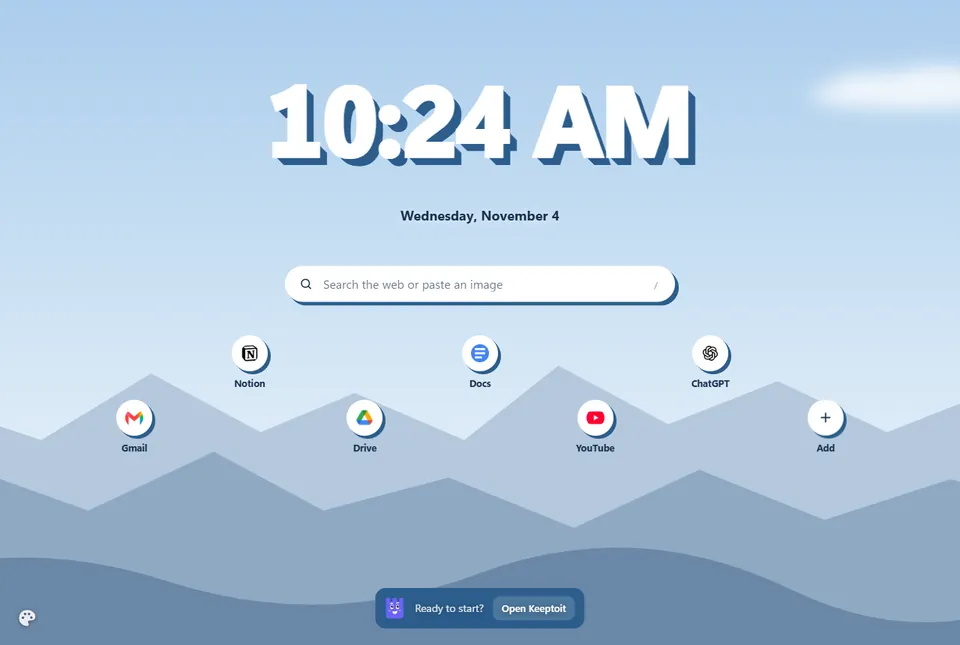
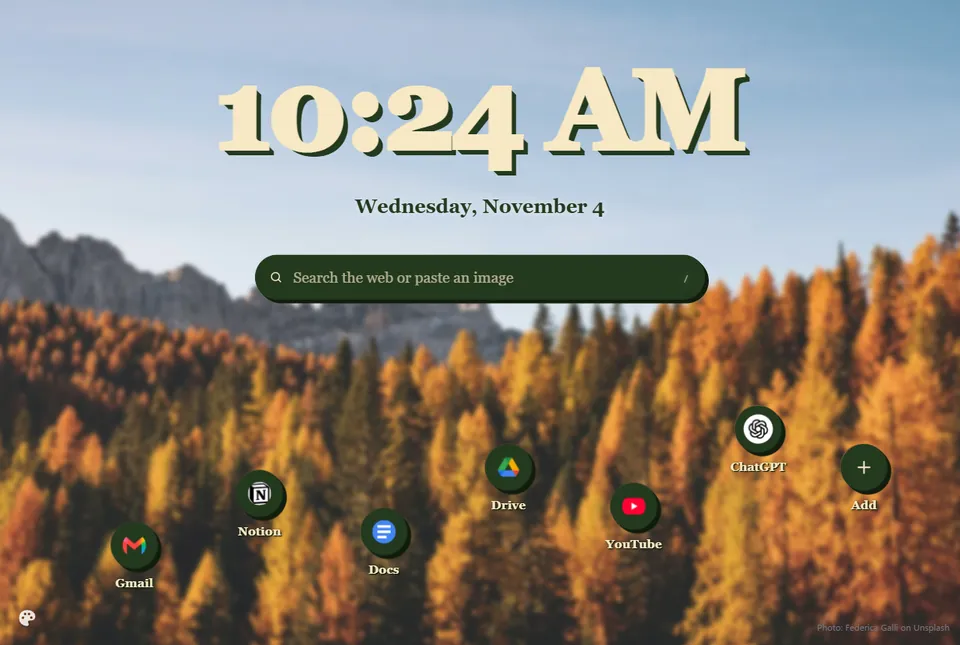
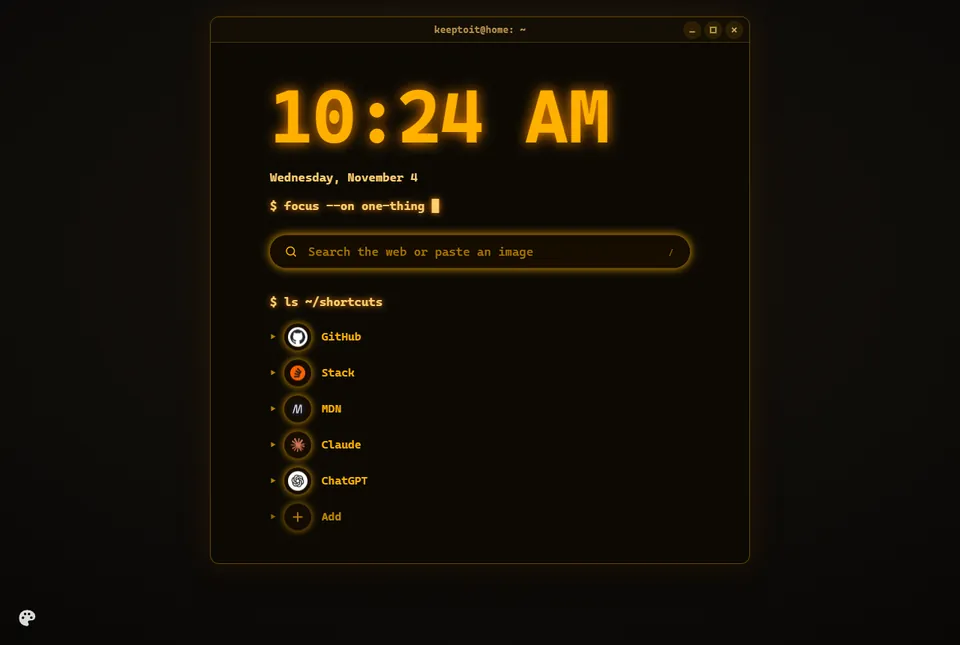
In a session, a new tab asks what you’re here to do. The rest of the time it’s your new tab, with the time, your shortcuts and a search box, laid out the way you like.
9:41
Sunday, November 3
Search with Google
Nothing planned yetOpen Keeptoit
Photo: UnsplashWhat a new tab shows
- Always show the session screenDefaultEvery new tab asks what you’re here to do.
- Only during a sessionOtherwise you get your own new tab, with the time.
Make it yours
The palette in the corner changes the look at once: a plain background in any colour, drawn scenes by day and night, photos, or your own picture. Start from one of nine layouts, or press E (or the pencil beside the palette) to drag, resize and style any part, add your own text and choose how the page comes in. Save Layout keeps yours by name.
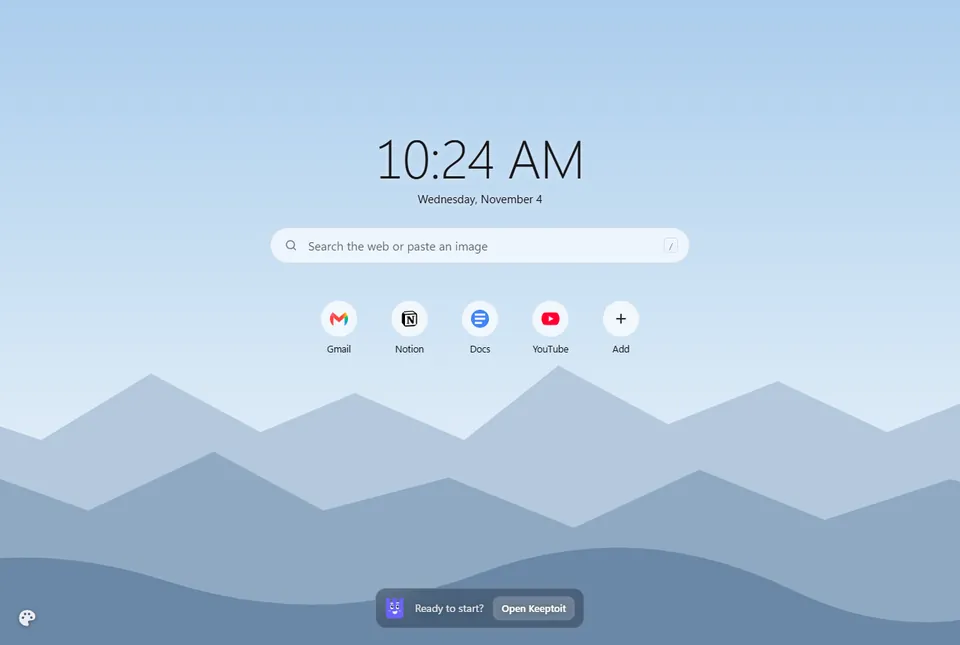
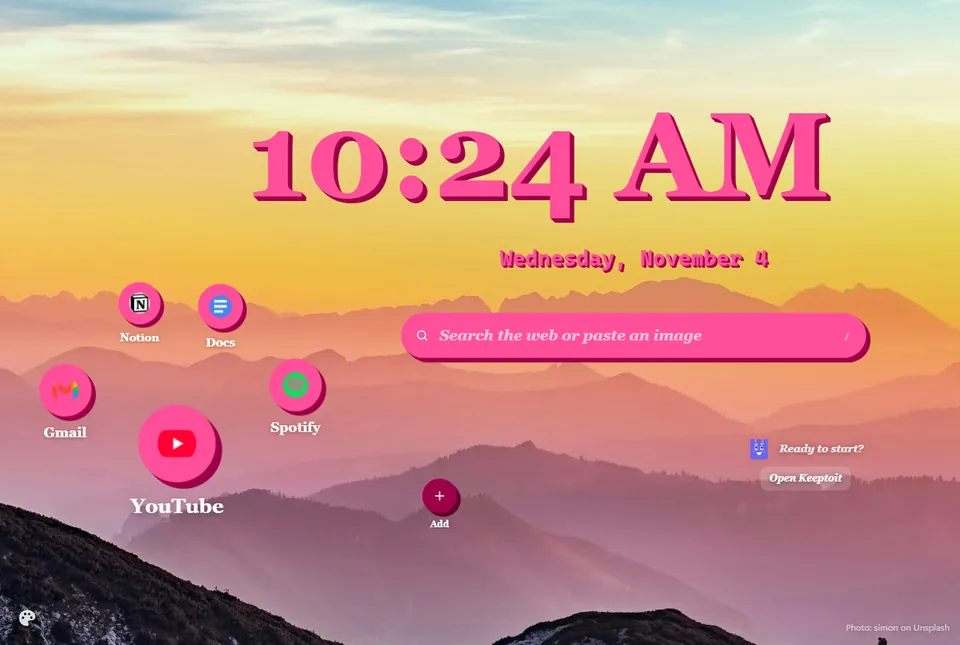
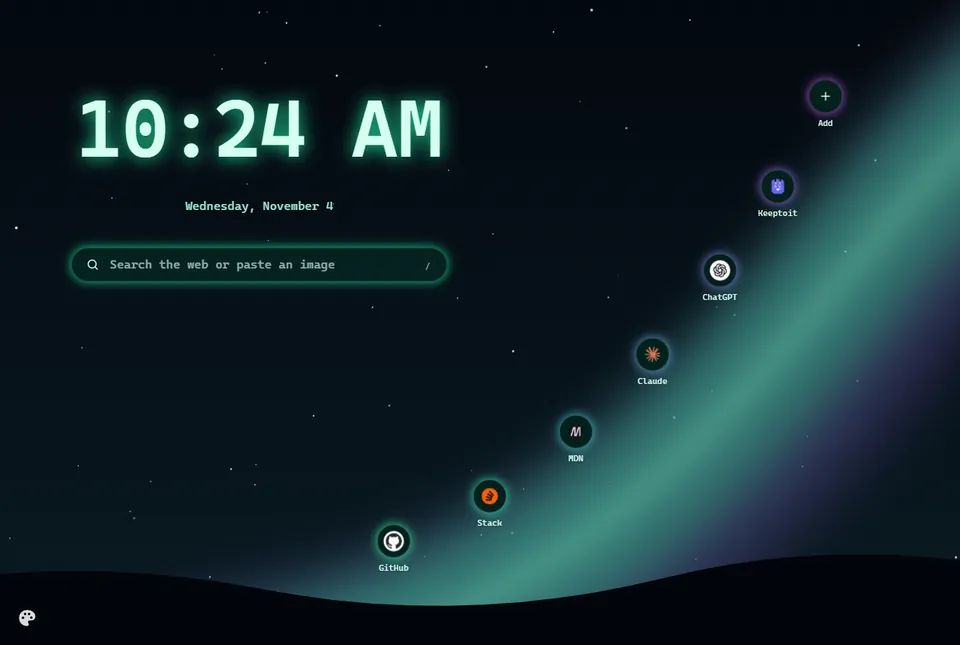
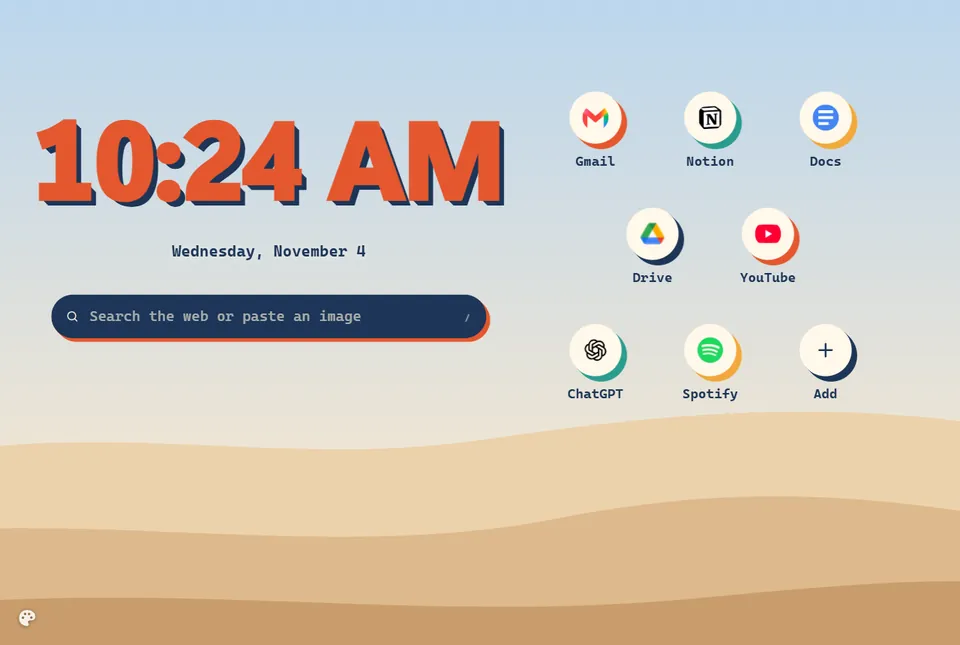
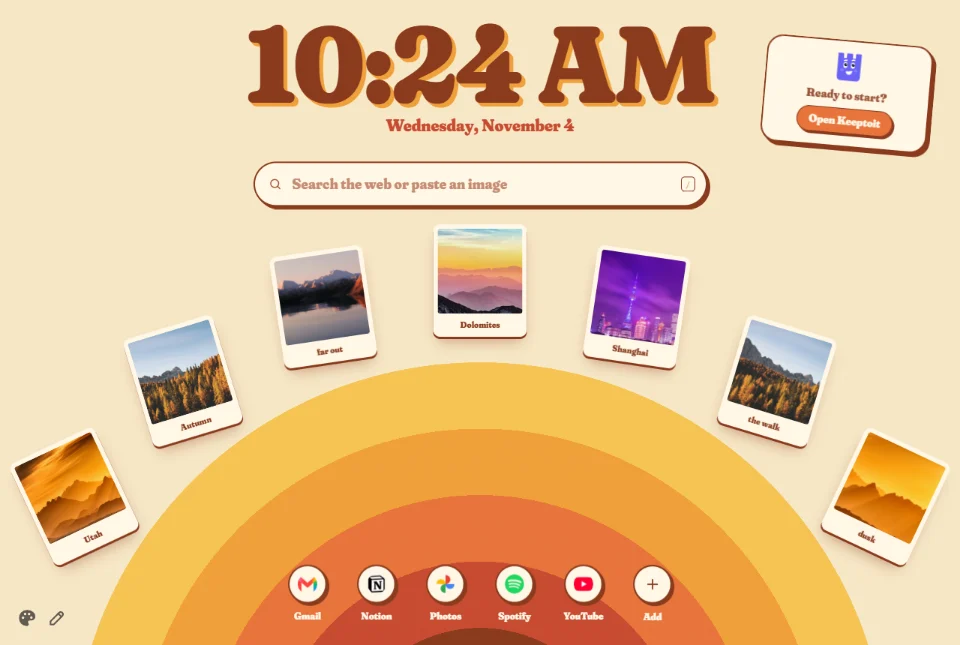
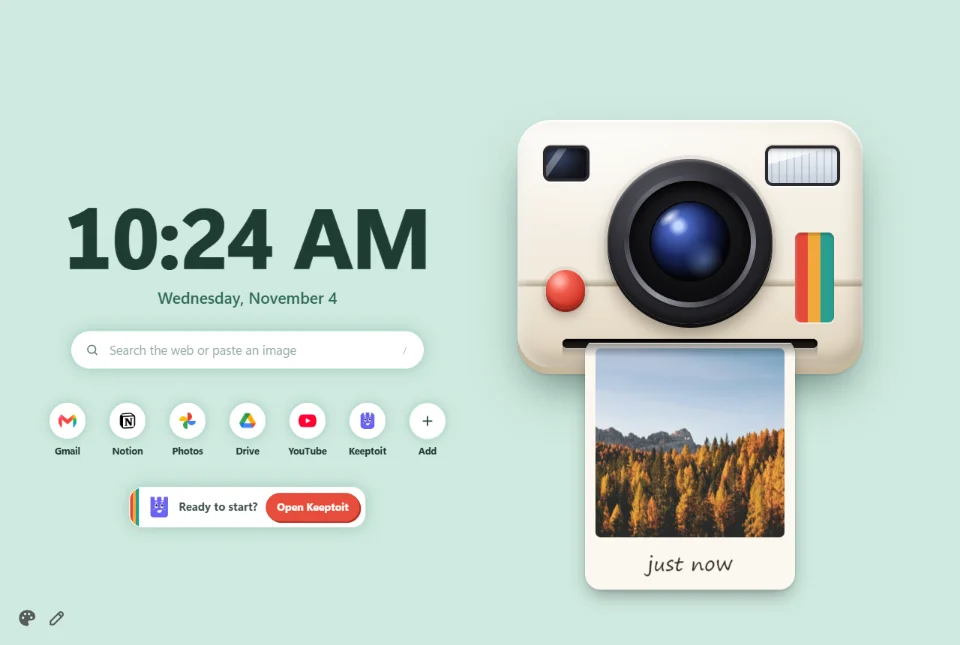
- Your own photos, as polaroids. Press Add Photo in Edit layout, or drop a picture while editing. Give one a caption, turn it with its round handle, and place up to eight.
- Shortcuts you pin, up to ten: by address, from your open tabs, or ready-made ones like Gemini, ChatGPT and Search by image. Never your most visited sites.
- Shortcuts trade places. Drag one over another and they swap, with Edit layout on or off.
- A search box with your browser’s default engine. Paste or drop a picture in it to search by that picture.
- Only a search box, if that’s all you want: switch the rest off in the palette, or remove them in Edit layout.
- The Keeptoit card shows your next planned session or a day off, with Open Keeptoit. It sits in every layout, in that layout’s own colours.
- Style any part. Select it in Edit layout for a toolbar: five weights of bold, italic and underline, any colour from Keeptoit’s colour picker, a 3D text shadow and the font. The search box, the shortcuts and the Keeptoit card can also get a background, see-through glass and a shadow, and the shortcuts can grow under the pointer. Colours show on the page while you point at them.
- Undo anything. Ctrl+Z or the Undo button takes back each change, one at a time, in Motion too. Ctrl+Y or Redo puts it back.
- Days off show your new tab, so nothing asks you to work.
- Text boxes of your own, up to eight, anywhere on the page, each with the whole toolbar, and one switch, Your own text, to hide or show them all. And a quote of the day.
- Layouts fit your window. Each one is arranged again for a wide, square or tall window instead of being shrunk, and comes with its own shortcuts: use them, add them to yours, or keep yours.
- Save your own layout. Save Layout keeps the page by name, shortcuts and all, with a picture of it beside the nine ready-made ones, up to twelve. Reset goes back to the layout you picked.
- Motion: how the page comes in when a tab opens. Eleven ready-made entrances, from a soft fade to an old TV turning on, or fine-tune your own and save it.
- No white flash. Before the picture shows, a new tab is a soft wash of its colours, and the picture fades in over it.
Why it works this way, and what to press when your browser asks: Your new tab, in Help.
Getting around
Every page, a few keys away.
Open any Keeptoit page from any tab, press any button without the mouse, and change the keys to the ones you like.
The session screen in keyboard mode
Type a letter to press it · Esc to stop
From any tab
- SessionAltShift1
- CalendarAltShift2
- GoalsAltShift3
- StatsAltShift4
- Do LaterAltShift5
- SettingsAltShift6
- Take a noteAltN
- Your notesAltM
Keyboard mode
Press Alt+Shift+K and every button on the page gets a letter or two. Type the letters to press it. Text boxes get the focus instead, and the letters wait while you type.
- AltShiftKKeyboard mode on or off
- ?Every key, on any Keeptoit page
- ShiftJ/KScroll down or up a little
- ShiftD/UHalf a page down or up
- ShiftG/TJump to the bottom or top
- EscLetters off
Your keys, your way
Settings → Keyboard changes any shortcut. Press the new keys, and Keeptoit checks them before it saves.
- Clashes are caught. Keys another shortcut uses are refused, and keys your browser uses get a warning that says what they do.
- In Chrome, Edge and Brave, the browser lets an extension set only four shortcuts: keyboard mode, Session, Calendar and Do Later. The other five are there for you to set to any keys you like, on chrome://extensions/shortcuts; Settings → Keyboard takes you there. In Firefox and Zen, all nine come set.
- The Keep names the keys in its first lessons, for your plan, Do Later and Stats.
- On any website, Alt+Shift+K opens the toolbar menu in keyboard mode.
Looking back
See where your time went.
Tracked time, finished sessions and a streak that rewards showing up. And an honest log of every time you opened a page anyway.
Finish a focus block on each active day.
A freeze covered Wednesday. Days off don’t count.
The log
- 2:41 PMOpened anyway: baeldung.com, “.NET DI is on the same page”
- 1:05 PMEnded early: 40 min of focus left in the plan
- MonOpened anyway: reddit.com/r/dotnet, “the fix is in this thread”
- Freezes cover a missed day, so one bad Wednesday doesn’t reset the streak.
- The log can’t be edited. Each entry is chained to the one before it.
- Share your week as a card. It shows numbers only, never a topic, page or site.
- Time keeps being tracked even when the AI hour is used up.
- Week by week. Time and Sessions show Monday to Sunday. Click the date for a month card and jump to any day; days you worked have a dot.
- Review the log. For each page you opened anyway, press Honest or I lied. You have 7 days; after that it shows as Not reviewed.
Staying honest
Fewer ways out, when you want them.
Most days the gentle version is enough. For the days it isn’t, strict sessions and the lock close the doors you choose.
Strict until 6:30 PM
Off-time allowed
Free days not allowed
You decide what a strict session allows before it starts.
Outside a session, websites are
Locked turns opening a browser into starting a session.
- Starting strict asks you to confirm, so it’s never switched on by accident.
- Required days mark the days a session is expected: a single date, or a weekday every week, like weekdays during exams. In strict mode they can be added, not taken away.
Staying honest
Only what it needs to judge one page.
Pages are checked only during a focus block, and only these few details leave your browser. Nothing is kept after the answer comes back.
Sent to check a page
- Your session topic, and your intention if you wrote one
- The page’s site, address, title and short description
- For YouTube videos, the channel name
- Your search terms and the titles of the results
- Your reason, if you give one with It’s Relevant
Never sent
- The page’s text
- Passwords
- Your browsing history
- Your other tabs
- No account needed. An account is optional and only adds a free week of full checking.
- Usage numbers and error reports are sent only if you allow them, and never carry a site, search or topic.
- Prefer your own AI key? A one-time licence lets pages go straight to your provider.
- The details are in the Privacy Policy.
Coming soon · Windows
A desktop app that keeps Keeptoit on.
An optional Windows app for the moments you’re tempted to switch Keeptoit off and procrastinate. It’s one more measure that keeps you to your work. It’s being built now and isn’t out yet.
Keeptoit for WindowsComing soon
Paired with Keeptoit
Focus block until 6:30 PM
Turning it off takes 24 hours
It sits in the tray and shows your current block.
Switching Keeptoit off
By the time the wait is over, the urge usually is too.
- Optional. Keeptoit works fully without it; the app only makes it harder to switch off.
- Your browser can’t remove or turn off Keeptoit while the app runs, so a strict session can’t be ended that way.
- Your override log is kept by the app too, so it survives a reinstall.
- Pairing takes a 6-digit code from the app’s tray window.
Ready when you are.
Add Keeptoit, write one sentence about what you’ll get done, and press Start Session.